How to use imessage’s new effects (like invisible ink)
Share this story
- Share this on Facebook
- Share this on Twitter
Share All sharing options for: How to use iMessage’s new features, effects, and stickers
Apple’s new iOS 10 update adds a bunch of fun new features to iMessage, including effects, apps, and stickers that you can send to your friends. Unfortunately, it’s not immediately obvious how any of this actually works. Confused how to add stickers? Want to send messages with confetti? Read on!
iMessage Apps
The biggest change in iMessage is the addition of apps, which fall into roughly two buckets. There are more traditional app integrations, like Fandango or Venmo. These allow access to app features within Messages, saving you from switching from Messages to another app. Second, there is the fun stuff, like the sticker apps.
[Important note: Messages is the name of the application on Mac and iOS. iMessage is Apple’s messaging service, accessed through the Messages app. Yes, the names are a bit confusing.]
Both types of apps live in the same part of the Messages app, which can be accessed by opening Messages and tapping the App Store icon to the left of the lower text box. This will display a series of scrolling panes, each containing the different apps you have installed. But what if you haven’t installed any iMessage apps?
How to install iMessage apps
The iMessage App Store is tucked away in the Messages app, but you can find it here.
- Hit the App Store icon next to the text box in Messages
- Tap the four-dot icon in the bottom left corner
- Hit the “+ Store” icon
Once you’ve reached the iMessage App store, you can buy and download new standalone iMessage apps and stickers, as well as manage any installed full iPhone apps that offer iMessage apps support. For example, Alto’s Adventure (the game) has a sticker pack app that can be added in this Manage tab. Since I already had Alto’s Adventure installed, the sticker pack was waiting for me when I installed iOS 10. Alternatively, both iMessage-only as well as full apps with iMessage support can be found in the regular iOS App Store, where iMessage support is specifically marked.
A lot iMessage apps are standalone and only exist in iMessage. So don’t assume everything is ready to go. You’ll want to take some time do discover what’s available in this special store. As a helpful tip, scrolling down in the iMessage app store will take you to the top free and paid apps, which is a good place to get started.
Stickers
Alright, you’ve splurged and bought some stickers (or just downloaded a few free ones) and now you want to use them. First, go back to the app selection page and swipe over to your chosen sticker app. Then you’ve got two choices. One is to simply tap the sticker, which will place it in the text composing box and allow you to send it like a picture. But the real fun happens when you use the second option: press your finger on a sticker, drag it out of the box, and place it on an earlier entry in your message history. This options allows you to annotate text, photos, or other stickers that have been sent in the past with your sticker of choice.
While each individual type of sticker lives in it’s own app — which can be irritating — Apple collects your most recent stickers, across all sticker apps, in its own Recent section of your iMessage app selection window.
Everything Else
iMessage Effects
Another new feature is the option to send messages with effects, like having the message inflate, appear in a shower of balloons, or be hidden by invisible ink. To access effects, type your message or insert a picture in the text box, then 3D Touch (or tap and hold on older models) the send button instead of just tapping it as usual. This will open the library of various effects. As a heads up to my friends and family, expect a whole lot of lasers in your texts.
Handwriting
iOS 10 also lets you send “handwritten” messages that you can draw with a finger onto your touchscreen. It’s one of the more hidden features, requiring you to turn your phone horizontal (with rotation lock off) in the iMessage app, at which point the handwriting interface will appear. For those with bad handwriting, Apple has included some premade messages for you to send.
Digital Touch
In what should be a familiar looking interface for Apple Watch users, Apple also brought it’s Digital Touch messages over to iMessage, where you can send taps, quick squiggly drawings, and hearts by tapping the heart icon next to the text box in the Messages app. The iMessage iteration takes it a step further, allowing you to import a photo to draw on in a very Snapchat-esque fashion (especially given that Digital Touch messages auto delete unless specifically kept).
Hitting the emoji button on your keyboard once you’ve typed in a bunch of text now highlights words in your message with emoji equivalents, allowing you to easily replace the words with emoji by simply tapping on them. This will save you from surfing through the emoji catalog.
Tapback
Lastly, Messages now has quick responses a la Facebook, where double tapping on a message allows you to quickly mark it with one of six icons, allowing to you heart, thumbs up, or thumbs down a message quickly.
Correction: This article originally stated that iMessage apps could only be found through the App store in the Messages app. They can also be found in the regular iOS App Store application.
If you’ve been paying attention, then you know Apple made Messages one of the stars of iOS 10.
The update supercharged the operating system’s messaging features with the ability to add a whole boatload of new animations and other fun effects to your messages. But not all of the new features are easy to find.
The ability to send messages with the new “invisible ink” feature, along with some of the other new effects, is not immediately obvious when you open the new Messages app.
To send a message with invisible ink (or other animations, like adding balloons or confetti) you first need to type your message as you normally would. Then, use 3D Touch (or just hold down if you have an older iPhone) on the send button to bring up the menu for changing the look of your text.
Select “invisible ink” from the menu. This will allow you to preview how your message looks before you finally send it. Check out the GIF below to see it in action.
Of course, it’s important to keep in mind that these features will only work with iMessage, not if you’re texting a friend who uses Android or another type of device. Additionally, the message may not render for the recipient if they haven’t yet updated their device to iOS 10.
Also, unlike Snapchat, these messages don’t actually disappear. Anyone who taps on the message can reveal its contents, so it’s probably best to avoid sending messages you actually want to keep secret. But even so, it’s a fun (if slightly gimmicky) way to exchange messages with friends.
Apple has finally given the long-awaited revamp to the Messages app for Mac with the introduction of macOS Big Sur. As expected, the stock messaging app has brought most of the goodies like Memoji stickers and the super cool screen and bubble effects from its iOS counterpart. If you love using these effects on your iPhone, chances are that you would like to use iMessage effects in macOS Big Sur as well. Let me show you how they work!
How to Use iMessage Effects in macOS Big Sur
For those unfamiliar, animated effects were first introduced in iOS 10 in 2016. Thanks to their ability to add plenty of fun elements to messaging, they are quite popular among those who admire iMessaging aka blue bubbles.
When you wish to light up the entire mood of messaging, animated effects come into play. To ensure your armory has got enough variety to express different feelings, the messaging app comes with a range of effects like heart, balloons, confetti, fireworks, slam, lasers, loud, celebration, echo, spark, and spotlight.
Not just that, there is also an invisible link that offers a bit of privacy to your personal message. Save it for the times where you are engaged in some secret messaging with your loved ones. On top of all, the messaging app automatically triggers different effects when you send certain phrases (more about it after the jump). Now that you know what they have got in store, it’s time to get started with steps!
- Automatically Trigger iMessage Effects on Mac
- Manually Send an iMessage with Different Effects
- Frequently Asked Questions
Automatically Trigger iMessage Effects on Mac
When you type certain phrases like Pew Pew, Congrats, Congratulations, Happy Birthday, and Happy New Year, the Messages app automatically uses the corresponding effects. So, the next time, you want to send a congratulatory message, simply enter these phrases and send them. The app will automatically add the suitable effect to spice up the conversation.
Manually Send an iMessage with Different Effects
At any time you want to rev up the mood of the message, you can manually choose from a variety of predefined animated effects.
- Launch Messages app on your Mac.
2. Now, select an existing conversation or start a new one.
3. Next, type a nice your message which you want to send to your friend. Then, click on the App Store icon to the left of the iMessage text field.
4. Next up, select Message Effects on the menu.
5. Choose the desired effect from plenty of options including balloons, confetti, fireworks, love, and more depending on the theme of the message or your mood.
Just in case you are willing to send a very special message with a bit of privacy, choose the invisible link effect. With the invisible ink, your iMessage will remain blurred until the recipient clicks on it to reveal it.
6. Once you have selected a preferred effect, hit the arrow to send the iMessage with the effect.
Frequently Asked Questions
Q. How do You Send an iMessage with Effects on Mac?
As mentioned in the guide above, it’s quite straightforward to send an iMessage with different effects like balloons, lasers, echo, and more. Simply open the conversation -> type a message -> App Store icon -> Message Effects. Now, choose an effect and hit the send button.
Q. Can iMessages be Tracked?
No. Apple offers end-to-end encryption to safeguard the iMessage against prying eyes. Knowing how seriously Apple takes care of security and privacy, you shouldn’t worry about the protection of your personal messages.
Q. How does iMessage Work on Mac?
Being deeply integrated into the Apple ecosystem, iMessage works seamlessly on Mac as well as other iDevices like iPhone and iPad. Just like other messaging apps in the market, they also use the Internet to deliver messages.
To get started open the Messages app and enter your Apple ID email address. Then, click on the Messages menu -> Preferences -> Accounts tab and then select the phone number and email address at which you’d like to be reached.
Q. Can You Get iMessage on Apple TV?
Unfortunately, you can’t. However, we expect Apple to bring it on Apple TV sometime in the future.
Use iMessage Effects to Light Up Messaging on Mac
So, these are the ways you can use iMessage effects to spice up messaging on your Mac. As someone who loves iMessaging to the core, I give a thumbs up to the introduction of animated effects on macOS. They have further enriched iMessaging.
Aside from the Messages app, Safari for macOS has also got some great enhancements like the ability to customize the start page and even set a custom background image. Give this nice feature a close look if you haven’t yet tried it out. Besides, be sure to share your thoughts about the Big Sur and what makes it stand out.
- TAGS
- Mac
- macOS
- macOS Big Sur
1 COMMENT
This is super helpful, thank you.. I am looking for something specific. I once knew someone who would type something like “// blows a kiss” and on the Mac this would should up in grey between texts as “Rebecca blows a kiss” or whatever the person’s name is… However I don’t remember what the code/shortcut is… “//” isn’t working for me. Are you familiar with this trick?
Source: iMore
One thing that makes iPhone and iPad special is the Messages app. Aside from the “Blue chat bubble” that is all the rage with the kids, you can trigger some pretty fun effects to iMessages that you send.
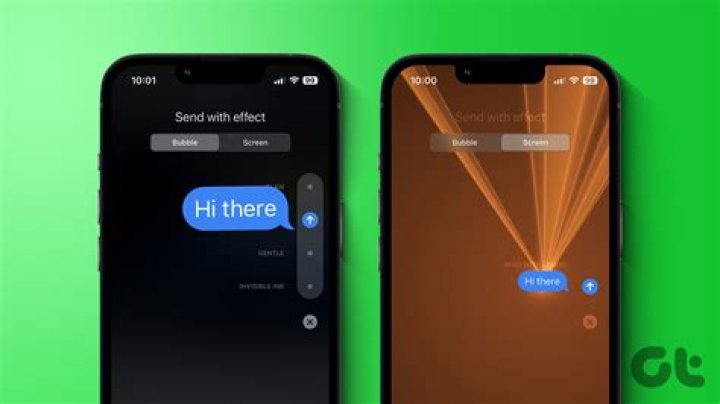
That includes effects for iPhone or iPad that make bubbles slam, loud, gentle, or invisible, or turn the whole screen to balloons, confetti, lasers, fireworks, or shooting stars.
Here’s how to spruce up your iMessage!
How do I add bubble effects to my iMessages?
- Enter the message you want to send.
Long press on the Send button (looks like an upward pointing arrow).
Source: iMore
Tap in the Send button to the right of the effect you chose (looks like an upward pointing arrow).
Source: iMore
How do I cancel a bubble effect in Messages?
Source: iMore
If you change your mind about sending a bubble effect, tap the Cancel button at the bottom of the effects list (looks like an X).
What do bubble effects do in Messages?
- Slam: Stamps the bubble down and makes the entire screen ripple
- Loud: Sends a giant bubble that shakes before settling down into place.
- Gentle: Sends a tiny bubble that meekly slips into place.
- Invisible ink: Covers the bubble in animated noise and blur until you swipe it out of the way.
Will the bubble effects I send show up in Messages on the Mac?
The Mac can receive the Invisible Ink bubble effect if you’re running macOS Sierra or High Sierra or later.
You can receive any bubble effect if you’re running macOS Big Sur, which has a brand new Messages app that can send and receive all of these effects, just like its counterparts for iPhone and iPad.
How do I add screen effects to my iMessages?
You can also send a screen effect from the Messages app or the new interactive notifications, even from the lock screen!
- Enter the message you want to send.
- Long press on the Send button (looks like an upward pointing arrow).
Select the Screen tab at the top, if it’s not already selected.
Source: iMore
Tap in the Send button to the right of your message (looks like an upward pointing arrow).
Source: iMore
How do I cancel a screen effect in Messages?
Source: iMore
If you change your mind about sending a screen effect, tap the Cancel button at the bottom below your message (looks like an X).
How to replay bubble and screen effects in iMessage
You can replay the bubble and screen effects you receive in an iMessage. Just follow these simple steps.
- Open Messages.
- Open the conversation in which you want to view the effects.
Find a message with an effect attached and press the Replay button to view the effect again.
Source: iMore
How to use Message effects with Reduce Motion turned on
If you have the Reduce Motion setting turned on to reduce things like the icon parallax effect, you can still have Message effects play automatically by flipping a switch in the Accessibility settings.
- Open Settings on your iPhone or iPad.
Tap Accessibility.
Source: iMore
Tap the switch next to Auto-Play Message Effects to the green ‘on’ position to allow Message effects to be played even when Reduce Motion is turned on.
Source: iMore
What do screen effects do in Messages?
Here are all of the current screen effects and what they do.
- Echo: Have your text duplicate and flood the screen of your recipient.
- Spotlight: Put a literal spotlight on your incoming iMessage.
- Balloons: Sends multi-color balloons expanding and flying up from the bottom right of the screen.
- Confetti: Drops multi-color confetti from the top of the screen.
- Love: A giant heart will appear to expand and pop from your latest iMessage.
- Lasers: Fills the screen with “unce, unce, unce” lasers and sound.
- Fireworks: Sets off multi-color fireworks from the center of the screen.
- Shooting stars: Launches a “the more you know” starburst shooting from the left of the screen, exploding as it reaches the right.
- Celebration: Fireworks and festivities aplenty will appear on your iPhone.
Will the screen effects I send show up in Messages on the Mac?
Not just yet, but with the arrival of macOS Big Sur later in 2020, you will be able to both view and send screen effects in Messages on your Mac.
Questions?
Do you have any questions about bubble and screen effects in an iMessage? Put them in the comments, and we’ll help you out.
Updated September 2020: Updated for iOS 13 and the iOS 14 beta.
Craig Lloyd is a smarthome expert with nearly ten years of professional writing experience. His work has been published by iFixit, Lifehacker, Digital Trends, Slashgear, and GottaBeMobile. Read more.
There are a lot of cool things you can do in iMessage other than just sending text messages to your friends and family, but for your compatriots that use Android, you’ll want to skip these specific iMessage features, since they don’t work on Google’s mobile OS.
Keep in mind; some iMessage features still work with Android, albeit maybe not as well as they would with other iPhones. I’ll cover both sides of the spectrum so that you know what exactly does and doesn’t work with Android.
iMessage Features That Don’t Work with Android
Unsurprisingly, a majority of iMessage features either show up kind of funky-looking on the other end or just don’t plain work at all with Android.
Apple Pay Cash is one feature that you won’t be able to use with your Android friends and family, which makes perfect sense because Apple Pay Cash is iPhone-only anyway. You’re better off using PayPal, Venmo, Square Cash, or another mobile payment platform.
Some iMessage apps may not work perfectly with Android. Your mileage may vary depending on the iMessage apps you frequently use, but I used the ETA iMessage app to send an Android friend my ETA, and while it showed up with a clean preview on my iPhone, it just showed up as a URL on his end. Granted, it still technically works, but it’s not as clean.
As far as Tapbacks—emoji reactions to messages—are concerned, they sort of work on Android, but they show up as text. So when you go to “thumbs up” their text message that said “Thanks!” it’ll just appear as a whole new text message that you “Liked” it, instead of showing up as a small thumbs up icon next to the original message.
It’s the same with iMessage Effects, like sending text or photos with Invisible Ink. On Android, the effect won’t appear. Instead, it’ll plainly show your text message or photo with “(Sent with Invisible Ink)” next to it. So if you plan on sending a nude pic with Invisible Ink to an Android friend, know that it won’t be censored at all on their end.
Handwritten Messages won’t send in the first place. You’d think iMessages would send them as a plain image, but it always just gives me the red “Not Delivered” error message every time. It could be a bug, but it appears that others have come across this issue as well, and it’s been happening for a while now.
And as for Audio Messages, that feature isn’t even available in the first place when texting with an Android friend. So for those lazy folks out there, you’ll have to type everything out (although you can still use voice dictation).
So What Features Do Work with Android?
It can be a little discouraging knowing that there are so many iMessage features that don’t work with Android, especially if most of your friends and family use Android. However, there are still some iMessage features that work across both platforms, so you’re not entirely out of luck.
For starters, Animoji kind of work when you send them to Android friends. A still image of an Animoji is sent as a regular image and shows up just fine; an animated Animoji also is sent as a video, albeit a pretty crappy quality one, unfortunately.
URL previews also still work pretty well when you send a link from iPhone to Android. Both devices will generate a nice-looking preview of whatever web page you send.
And of course, photos and videos will send to other Android devices just fine. Although videos look pretty terrible on Android.
Unfortunately, that’s pretty much it. There’s nothing too surprising here, but it certainly goes to show just how much benefit there is to using iMessage from iPhone to iPhone.
Новий iMessage для iOS 10 – це джем з новими функціями, включаючи спеціальні ефекти для ваших повідомлень. Давайте подивимося, де знайти спеціальні ефекти і як їх застосувати.
Спеціальні ефекти для всіх (на iOS 10)
iOS 10 отримав багато нових функцій і оновлень, але iMessage безумовно отримав найбільший капітальний ремонт. Серед багатьох змін, включаючи впровадження екосистеми на основі додатків, було запровадження спеціальних ефектів для ваших повідомлень.
Ці повідомлення поділяються на дві широкі категорії: «міхур» і «екран». Ви можете стверджувати, що існує інша широка відмінність між “корисним” і “дурним”… але ми дозволимо вам зробити цю відмінність самостійно..
Перш ніж зануритися в те, де їх знайти, і як їх використовувати, однак, є одна велика річ, яку варто зауважити, що саме ви вважаєте: вони не працюють, якщо ви надсилаєте текстові повідомлення комусь, хто не працює в iOS 10.
Замість того, щоб отримувати будь-який прохолодний ефект, повідомлення було отримано, одержувач просто отримає ваше звичайне старе текстове повідомлення з доповненням у вигляді дужки, що говорить їм, який класний спеціальний ефект вони не бачили. Замість «БІЛЬШІ ЛАЗЕРІВ!» І спеціальних ефектів, які вибухають по всьому екрану, вони стають нудними старими «Більше лазерів! (відправлено з лазерами) »у вигляді звичайного тексту. Якщо ви хочете, щоб у когось з учасником iMessage, краще заохочувати всіх друзів до оновлення до iOS 10.
Якщо ви зіткнетеся з будь-якими збоями в роботі з новими ефектами iMessage, і ви і ваш одержувач запускають iOS 10, обов’язково перевірте наш посібник з усунення несправностей.
Де знайти спеціальні ефекти: шукайте стрілку
Якщо ви не знаєте, де шукати, нові спеціальні ефекти в iMessage досить добре приховані. Відкрийте або скомпонуйте нове повідомлення в iMessage (бажано до толерантного волонтера, який також має iOS 10). Введіть тестове повідомлення, а потім знайдіть значок відправлення, кругову синю піктограму з білою стрілкою в центрі, розташованій праворуч від поля введення тексту.
Натисніть і утримуйте синю піктограму на мить (якщо ви просто натискаєте на неї, то вона надішле ваше повідомлення без спеціальних ефектів). Це відкриє меню спеціальних ефектів. Подивимося зараз на окремі спеціальні ефекти.
Bubble Ефекти: Чат бульбашки на стероїди
Перша панель виділення спеціальних ефектів сфокусована на ефектах “Bubble”, як ви можете бачити на етикетці у верхній частині екрана. Ефекти “міхура”, як ви вже здогадалися, – це спеціальні ефекти, застосовані до бульбашок чату в iMessage, включаючи вкладення зображень.
Ефекти, як зазначено вище: “Slam”, “Loud”, “Gentle” та “Invisible Ink”. Ви можете натиснути на маленьке коло поруч із будь-якими елементами, щоб отримати миттєвий перегляд того, як він буде виглядати вашому одержувачу. Не хвилюйтеся, повідомлення не буде надіслано, поки ви не підтвердите, натиснувши синю піктограму надіслати для підтвердження. Не хочете ефект? Натисніть “X”.
Перші три – це те, що ми вважаємо театральними. Але остання невидима чорнило – насправді практична. Slam призводить до того, що ваше повідомлення з’явиться так, ніби він потрапляє на екран. Гучний сигнал викидає з екрану, а потім повертається на місце (як мультиплікаційний крик, якщо хочете). Ніжний починає повідомлення злегка збільшене, а потім відправляє його дрейфує, добре, м’яко повертається до його стандартного розміру. Як ви можете сказати з опису, вони досить видовищні в природі.
Невидимі чорнила, однак, є нашим улюбленим ефектом міхура. Якщо ви коли-небудь хотіли відправити повідомлення чи фотографію комусь і матиме їх бачити тільки, якщо вони знайдуть час, щоб розкрити його (як проти, щоб відкрити iMessage за столом конференції на роботі і випадково виявити невідповідне повідомлення або фото) Це особливий ефект для вас. Тут ви можете побачити зображення, замасковане ефектом Invisible Ink.
Яка нас скандальна картина чекає?
Тут ви можете побачити його після того, як ви або одержувач проведіть пальцем по затемненому зображенню.
З’являється дикий Хагрід!
Через кілька хвилин він повернеться до затемненого стану. Якщо повідомлення з’являється, коли телефон заблоковано (і відображається через сповіщення) або якщо повідомлення iMessage просто відкрите, повідомлення не буде розкрито і буде просто позначено як “(надіслано невидимим чорнилом)”, що вказує одержувачу, що він потребує уваги.
ПРИМІТКА. У попередньому перегляді ефектів відображається лише останній елемент даного повідомлення. Це означає, що якщо ви додаєте фотографію, а потім додаєте заголовок повідомлення, у вікні попереднього перегляду невидимих чорнила відображається лише заголовок повідомлення, але не хвилюйтеся, ефект застосовується до всього повідомлення, фотографія включена.
Ефекти екрану: Готові лазерні гармати
Якщо ви випробували ефекти міхура і позіхали, вже жадаючи більше очей, щоб привернути увагу друзів, то вам пощастило. Просто перейдіть в меню ефектів за допомогою довгої іконки, а потім виберіть вкладку “Екран”, розташовану поруч із вкладкою “Пузир”, і ви перебуваєте в бізнесі..
Як і в попередньому розділі, натискання значка синьої стрілки підтверджує необхідний ефект і надсилає повідомлення, X видаляє ефект і повертає вас до головного інтерфейсу iMessage. Екранні ефекти доступні за допомогою натискання вліво і вправо, і в даний час: «Повітряні кулі», «Конфетті», «Лазери», «Феєрверки» і «Зйомки зірок», як показано нижче. Якщо певний попередній перегляд анімації закінчується, і ви хочете переглянути його знову, торкніться будь-якого місця на екрані, який не є існуючим елементом інтерфейсу (наприклад, значок відправлення), і він відтворюватиметься.
На відміну від ефектів міхура (які відрізняються між автоматичними ефектами, такими як Slam та інтерактивні ефекти, такі як Invisible Ink), екран спрацьовує автоматично. Одержувач побачить те ж саме (зйомки зірок, феєрверки, що б ви не вибрали), коли вони отримують (або відкривають) повідомлення. На жаль, це одна операція – незалежно від того, наскільки ви любите лазери, ви не можете знову натиснути на повідомлення, або будь-яку іншу річ, і побачити анімацію, яка спочатку була надіслана з повтором повідомлення..
Сподіваємося, що незабаром ми побачимо більше ефектів екрану, або від Apple, або від нового магазину додатків iMessage. Ми з нетерпінням чекаємо на Лазери II, Лазери III, Більше лазерів і Остаточний лазерний вибух..
Це все, що потрібно. Кому потрібні нудні повідомлення, коли ви можете відправляти повідомлення плащ і стиль кинджала, або лазерні шиповані?
iMessage ใหม่สำหรับ iOS 10 นั้นเต็มไปด้วยคุณสมบัติใหม่รวมถึงเอฟเฟกต์พิเศษสำหรับข้อความของคุณ เรามาดูกันว่าจะหาเอฟเฟกต์พิเศษได้อย่างไรและจะนำไปใช้อย่างไร.
เทคนิคพิเศษสำหรับทุกคน (บน iOS 10 นั่นคือ)
iOS 10 ได้รับคุณสมบัติและอัปเดตใหม่ ๆ มากมาย แต่ iMessage ได้รับการปรับปรุงใหม่อย่างแน่นอน ท่ามกลางการเปลี่ยนแปลงมากมายรวมถึงการแนะนำระบบนิเวศที่อิงแอพคือการแนะนำเอฟเฟกต์พิเศษสำหรับข้อความของคุณ.
ข้อความเหล่านี้แบ่งออกเป็นเอฟเฟกต์“ ฟองสบู่” และ“ หน้าจอ” สองหมวดหมู่กว้าง ๆ คุณสามารถโต้แย้งว่ามีความแตกต่างอื่น ๆ ระหว่าง “ประโยชน์” และ “โง่” . แต่เราจะให้คุณสร้างความแตกต่างด้วยตัวคุณเอง.
ก่อนที่เราจะดำน้ำเข้าไปในที่ที่จะพบพวกเขาและวิธีการใช้พวกมันมีสิ่งสำคัญที่ควรค่าแก่การสังเกตนั่นคือสิ่งที่คุณคาดเดา: พวกเขาไม่ทำงานถ้าคุณส่งข้อความถึงคนที่ไม่ได้ใช้ iOS 10.
แทนที่จะได้รับสิ่งที่เจ๋ง ๆ ควรถูกกระตุ้นด้วยข้อความผู้รับก็จะได้รับข้อความเก่าธรรมดาของคุณพร้อมกับภาคผนวกผู้ปกครองบอกพวกเขาว่าสิ่งพิเศษเย็นที่พวกเขาไม่ได้เห็น แทนที่จะเป็น“ เลเซอร์มากขึ้น!” และเอฟเฟกต์พิเศษที่ระเบิดไปทั่วหน้าจอพวกเขาก็น่าเบื่อกว่าเดิม“ เลเซอร์มากขึ้น! (ส่งด้วยเลเซอร์)” เป็นข้อความธรรมดา หากคุณต้องการให้ใครบางคนมีปาร์ตี้ iMessage ด้วยคุณควรแนะนำให้เพื่อน ๆ ทุกคนอัปเดตเป็น iOS 10.
หากคุณพบความผิดพลาดใด ๆ ด้วยเอฟเฟกต์ iMessage ใหม่และคุณและผู้รับของคุณใช้งาน iOS 10 อย่าลืมตรวจสอบคู่มือการแก้ไขปัญหาของเราที่นี่.
สถานที่ที่จะหาเทคนิคพิเศษ: มองหาลูกศร
หากคุณไม่รู้ว่าจะมองไปที่ใดเอฟเฟ็กต์พิเศษใหม่ใน iMessage ก็ถูกซ่อนไว้อย่างดี เปิดหรือเขียนข้อความใหม่ใน iMessage (ควรเป็นอาสาสมัครที่อดทนซึ่งติดตั้ง iOS 10 ด้วย) พิมพ์ข้อความทดสอบแล้วมองหาไอคอนส่งไอคอนวงกลมสีน้ำเงินพร้อมลูกศรสีขาวที่อยู่ตรงกลางด้านขวาของกล่องป้อนข้อความ.
กดไอคอนสีฟ้าค้างไว้สักครู่ (ถ้าคุณแตะมันแล้วมันจะส่งข้อความของคุณโดยไม่มีเทคนิคพิเศษ) จะเป็นการเปิดเมนูเอฟเฟกต์พิเศษ ลองมาดูเทคนิคพิเศษของแต่ละคนตอนนี้.
เอฟเฟกต์ฟอง: Chat Bubbles บนสเตอรอยด์
บานหน้าต่างแรกของการเลือกเอฟเฟ็กต์พิเศษจะเน้นไปที่เอฟเฟกต์“ Bubble” ดังที่คุณเห็นโดยฉลากที่ด้านบนของหน้าจอ เอฟเฟกต์บับเบิ้ลอย่างที่คุณคิดว่าเป็นเอฟเฟกต์พิเศษที่ใช้กับฟองแชทใน iMessage รวมถึงไฟล์แนบรูปภาพ.
ผลกระทบดังกล่าวข้างต้น:“ สแลม”,“ ดัง”,“ อ่อนโยน” และ“ หมึกที่มองไม่เห็น” คุณสามารถแตะวงกลมเล็ก ๆ ข้างรายการใดก็ได้เพื่อดูตัวอย่างทันทีว่ามีลักษณะอย่างไรกับผู้รับของคุณ ไม่ต้องกังวลข้อความจะไม่ส่งจนกว่าคุณจะยืนยันโดยกดไอคอนส่งสีน้ำเงินเพื่อยืนยัน ไม่ต้องการผลหรือ แตะ“ X”.
สามคนแรกคือสิ่งที่เราจะพิจารณาความเจริญละคร แต่หมึกสุดท้ายที่มองไม่เห็น – จริง ๆ แล้วเป็นประโยชน์ สแลมทำให้ข้อความของคุณปรากฏราวกับกำลังกระแทกลงบนหน้าจอ เสียงดังทำให้ข้อความโผล่ออกมาจากหน้าจอและจากนั้นกลับเข้าที่ (เช่นเสียงการ์ตูนถ้าคุณต้องการ) อ่อนโยนเริ่มข้อความออกขยายเล็กน้อยแล้วส่งมันลอยดีกลับเบา ๆ ขนาดมาตรฐาน อย่างที่คุณสามารถบอกได้จากคำอธิบายพวกมันค่อนข้างฉูดฉาดตามธรรมชาติ.
อย่างไรก็ตามหมึกที่มองไม่เห็นนั้นเป็นเอฟเฟกต์ฟองที่เราโปรดปราน หากคุณเคยต้องการส่งข้อความหรือรูปถ่ายถึงใครบางคนและให้พวกเขาเห็นเฉพาะเมื่อพวกเขาใช้เวลาในการเปิดเผย (ตรงกันข้ามกับการเปิด iMessage ที่โต๊ะประชุมในที่ทำงานและบังเอิญเปิดเผยข้อความหรือภาพถ่ายที่ไม่เหมาะสม) นี่คือเอฟเฟกต์พิเศษสำหรับคุณ ที่นี่คุณสามารถเห็นภาพที่ปกคลุมไปด้วยเอฟเฟกต์หมึกล่องหน.
ภาพอื้อฉาวอะไรรอเราอยู่?
Hagrid ป่าปรากฏขึ้น!
หลังจากนั้นครู่หนึ่งมันจะกลับสู่สถานะที่ถูกบดบัง หากข้อความปรากฏขึ้นในขณะที่โทรศัพท์ถูกล็อค (และแสดงผ่านการแจ้งเตือน) หรือหาก iMessage เปิดอยู่ข้อความจะไม่ถูกเปิดเผยและจะมีข้อความกำกับว่า“ (ส่งด้วยหมึกที่มองไม่เห็น)” เพื่อระบุว่าผู้รับ ต้องการเข้าร่วม.
หมายเหตุ: เฉพาะรายการสุดท้ายในข้อความที่ระบุเท่านั้นที่จะแสดงในหน้าตัวอย่างเอฟเฟกต์ ซึ่งหมายความว่าถ้าคุณแนบภาพถ่ายแล้วเพิ่มคำบรรยายเฉพาะข้อความคำบรรยายภาพจะแสดงในตัวอย่างของหมึกล่องหน แต่ไม่ต้องกังวลผลกระทบจะถูกนำไปใช้กับข้อความทั้งหมดรวมภาพถ่าย.
เอฟเฟกต์หน้าจอ: เตรียมพร้อมเลเซอร์แคนนอน
หากคุณลองใช้เอฟเฟกต์ฟองและหาวแล้วละก็อยากได้วิธีที่สะดุดตามากขึ้น (ส่งเสียงเหรอ?) เพื่อส่งข้อความถึงเพื่อนของคุณและคุณโชคดี เพียงไปที่เมนูเอฟเฟกต์ผ่านไอคอนยาวกดอีกครั้งจากนั้นเลือกแท็บ “หน้าจอ” ซึ่งอยู่ถัดจากแท็บ “ฟอง” และคุณอยู่ในธุรกิจ.
เช่นเดียวกับในส่วนก่อนหน้าการแตะไอคอนลูกศรสีน้ำเงินยืนยันผลที่คุณต้องการและส่งข้อความ X ลบเอฟเฟกต์และนำคุณกลับไปที่อินเทอร์เฟซหลักของ iMessage เอฟเฟกต์หน้าจอสามารถเข้าถึงได้โดยการเลื่อนไปทางซ้ายและขวาและในปัจจุบัน: “ลูกโป่ง”, “Confetti”, “เลเซอร์”, “ดอกไม้ไฟ” และ “ดาวยิง” ดังที่ปรากฏด้านล่าง หากตัวอย่างภาพเคลื่อนไหวเฉพาะนั้นเสร็จสิ้นและคุณต้องการดูอีกครั้งให้แตะที่ใดก็ได้บนหน้าจอที่ไม่ใช่องค์ประกอบส่วนต่อประสานที่มีอยู่ (เช่นไอคอนส่ง) และจะเล่นซ้ำ.
แตกต่างจากเอฟเฟกต์ฟอง (ซึ่งแตกต่างกันระหว่างเอฟเฟ็กต์อัตโนมัติเช่นสแลมและเอฟเฟ็กต์แบบอินเทอร์เฟซเช่นหมึกที่มองไม่เห็น) หน้าจอมีผลต่อไฟทั้งหมดโดยอัตโนมัติ ผู้รับจะเห็นสิ่งเดียวกัน (ดาวยิงดอกไม้ไฟหรือสิ่งที่คุณเลือก) เมื่อพวกเขาได้รับ (หรือเปิด) ข้อความ น่าเศร้าที่มันเป็นช็อตนัดเดียว – ไม่ว่าคุณจะรักเลเซอร์มากแค่ไหนคุณก็ไม่สามารถแตะที่ข้อความอีกครั้งหรือสิ่งใด ๆ และดูภาพเคลื่อนไหวที่ส่งมาพร้อมกับการเล่นซ้ำของข้อความ.
หวังว่าเราจะเห็นเอฟเฟกต์หน้าจอเพิ่มเติมเร็ว ๆ นี้ไม่ว่าจะจาก Apple หรือจาก iMessage app store ใหม่ เรากำลังรอคอยที่จะเปิดตัวเลเซอร์ Lasers II, Lasers III, More Lasers และ Ultimate Laser Blast.
CPU Graphics Card HDD SSD Display Fans & Cooling Mainboard Laptop Memory Reviews
作者 frank
iMessage got a huge update in iOS 10, adding things like third-party app integration, rich links, and a number of fun graphical effects for messages. If you’re seeing messages that say something like “(sent with Invisible Ink)” instead of seeing the actual Invisible Ink effect, we’ve got a couple of fixes for you to try.
Sign Out and Back In to iMessage on All Your iOS Devices
Most often, not message effects stems from a server error on Apple’s end. You can correct this by signing out and back in to iMessage. You’ll need to sign out on all devices your account is used on, and then sign back into each of them. Here’s how to do it.
Fire up your Settings app and then tap “Messages.”
On the Messages screen, tap the “Send & Receive” item.
At the top, tap the address with which you’re signed into iMessage.
On the Message Account pop-up, tap “Sign Out.”
After a moment, you’ll be signed out of iMessage. Repeat this process on all the devices you use that account for with iMessage before continuing.
After signing out on all your devices, tap “Use your Apple ID for iMessage” on this same page to sign back in.
Enter your Apple ID and password, and then tap “Sign In.”
After you sign in, fire up your Messages app. Messages you’ve already received won’t change, so you’ll need to get someone to send you a new message using an effect so you can test it out. Hopefully, you’ll see the full message effect now.
And if it looks good, go ahead and repeat those last couple of steps to sign back into iMessage on your other devices.
Turn Off the Reduce Motion Accessibility Setting
Some people have also reported that having the Reduce Motion setting turned on interferes with their ability to see message effects. The Reduce Motion setting is intended to disable unnecessary animations–like the parallax effect on your home screen. Some folks turn it on because those types of animations bother them, others to boost performance or help increase battery life. If you do use the Reduce Motion setting and it interferes with message effects, you’ll just have to decide which is more important to you.
That said, many people don’t experience the problem and message effects work fine even when Reduce Motion is turned on. It’s an easy enough thing to check, though. Maybe it will work for you if signing out and back in to iMessage didn’t.
In your Settings app, tap “General.”
On the General settings screen, tap “Accessibility.”
On the Accessibility settings screen, see whether the “Reduce Motion” item is turned on or off. If it’s turned on, go ahead and tap “Reduce Motion.”
Turn the “Reduce Motion” toggle off.
Now, can go test your messages again to see if effects are working. Like we said, this seems to be working for some people, but not others. So far, all the instances we’ve seen on our own devices were corrected by either turning Reduce Motion off or signing out and back into iMessages on your devices. So, hopefully, this will get you fixed up and sending invisible messages in no time.
As an Amazon Associate and affiliate of other programs, I earn from qualifying purchases.
iOS 10 brought most of the changes to iMessages compared to anything else. If you are still unaware of the features added to the Messages app then you should definitely read this article as I will share how to send iMessages with bubble and screen effects in iOS 10. Using these effects will make your messages more engaging and interesting leading to an altogether overwhelming experience.
I really love the new special screen effects which come with the messages. Believe me or not, I have stopped using WhatsApp for all my contacts on iOS. It is so amazing and I am pretty much sure you will too switch to iMessages after reading this piece. So, let’s dive in.
Send iMessages with bubble and screen effects
If you are unable to use the new message effects and still cannot get them to work then use the following steps.
1. Open Messages app and select the desired conversation.
2. Type in the message as you would normally do.
3. Now, this is the key step if you want to send iMessage with special screen effects. Long tap the Send button(upward arrow icon).
4. Here you will find 2 types of effects categorized under 2 tabs Bubble and Screen at the top. Bubble messages will give special effects when your message is seen by the recipient. Tap on the checkbox adjacent to the desired effect name. On selecting, it will give you a preview of the effect as well. You can try out all four of them. Personally, I don’t like Invisible Ink much and use Slam and Loud effects a lot 😛 After selecting the desired bubble effect tap on Send.
To send messages with screen effects select the Screen tab from the top. There are five screen effect options available. Messages sent with Screen effects. To switch to different effects swipe left and right on the screen. When you are finally on the desired screen effect, select Send(upward arrow icon).
Woah! You just sent an iMessage with stunning Effect. After updating to iOS 10, I have used Messages app the most when instant messaging apps are considered. You just can’t resist using it.
Here are a few handpicked iOS 10 tutorials which might be helpful.
We hope that you were able to send iMessages with special effects in all new iOS 10 using this tutorial. If you like the tips then Subscribe to our Newsletter for more to be delivered to your mailbox. Also, do not forget to share your experience with these special effects.




